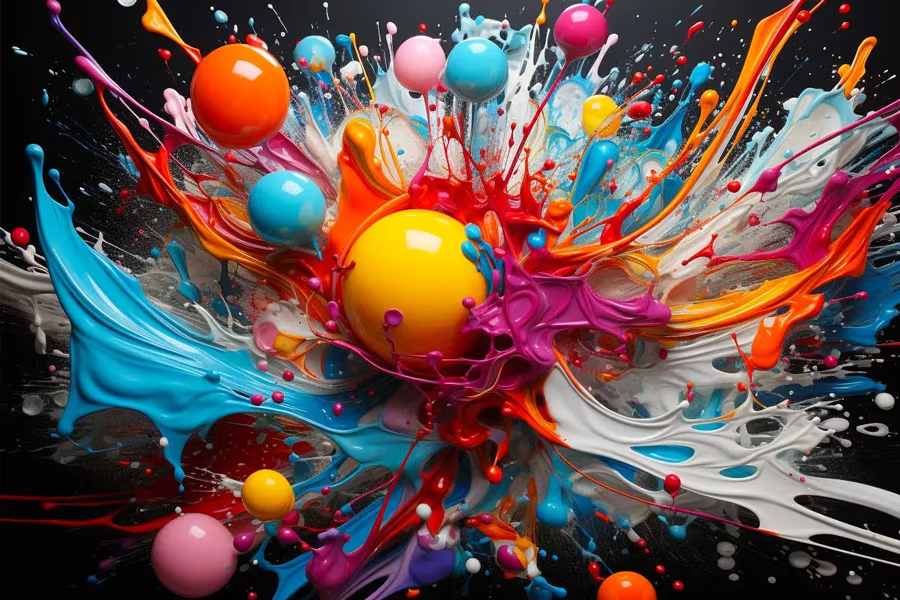

What is Midjourney?
Midjourney is an AI art creation engine that creates images from text prompts entered by users. Launched in 2021, it quickly became one of the leading AI art platforms for generating stunning and creative visuals using artificial intelligence.
At a high level, Midjourney works by taking text prompts and generating images that match the description. Users can describe a scene, character, object or any other concept just using their imagination and words. Midjourney's AI will then analyze the text and create an image representing it.
The key features and capabilities of Midjourney include:
- Text-to-image generation - Users can turn any idea or description into an AI generated image. Just enter a text prompt and let Midjourney do the rest.
- Photorealistic images - Midjourney specializes in creating highly detailed and photorealistic images across a variety of styles and genres. The AI can generate landscapes, portraits, abstract art, logos, and more.
- Imaginative AI - Midjourney's artificial intelligence aims to be creative, imaginative, and even surprising. The AI tries to capture the essence of the prompt, not just the literal description.
- Fast image generation - Midjourney can produce images from text in seconds. This allows for rapid iteration and refinement of images.
- Diverse range of styles - Users can make images in any art style from realism to cartoons using modifiers in the text prompt. Midjourney supports a huge diversity of styles.
- Community of creators - Midjourney has an engaged community of users who help each other create amazing AI art. The collaborative element helps everyone improve their prompt crafting skills. In summary, Midjourney opens up AI art generation to anyone through intuitive text prompts. Its versatile AI can bring any idea or scene described in words vividly to life as images.
Sign Up for Midjourney
Midjourney is open to anyone — the invite-only beta ended in 2022. Go to midjourney.com and sign in with a Google or Discord account. You can now work entirely in the web app, or use Midjourney's Discord server if you prefer the original bot workflow.
Accept the terms when you're prompted and you're in. If you'd rather work in Discord, join the server and the same account carries across.
After your account is created, you can choose between four tiers. Prices are correct as at September 2026, and are about 20% cheaper if you pay yearly:
Free- Gives you 25 free image generations per month.- Basic - $10 per month. Gives you 3.3 hours of creation time which is approx 200 image generations per month.
- Standard - $30 per month. 15 hours of creation time
- Pro - $60 per month. 30 hours of creation time
- Mega - $120 per month. 60 hours of creation time
- *NOTE, Midjourney no longer offer free accounts due to an overwhelm of users. To upgrade to a paid tier, go to your Midjourney profile and subscribe. You can pay monthly or yearly.
The basic tier is great for getting started and experimenting with Midjourney. However, if you want to generate more images or higher resolution, a paid subscription is recommended.
Once your account is set up, you're ready to start creating! In the web app, type your prompt into the box at the top of the screen. In Discord, head to the #newbies channel and type /imagine to generate your first image.
Generate Your First AI Art Creation
Once your account is set up, you're ready to generate your first AI image. The walkthrough below uses the Discord bot; the web app takes the same prompts without the slash command. Here's how to get started:
Use the /imagine Command
The /imagine command tells Midjourney you want to generate an image. After entering your prompt, press enter and Midjourney will start processing.
Within a minute, Midjourney will post 4 image variations in the Discord channel based on your prompt.
Make Your First Prompt
Go to the #newbies channel in the Discord and type "/imagine" followed by a text description of the image you want to generate. Be as detailed as possible - describe the subject, lighting, colors, mood, style etc.
For example, you could prompt:
/imagine an oil painting portrait of a girl with long curly red hair, smiling, wearing a blue dress, sitting in a green meadow at sunset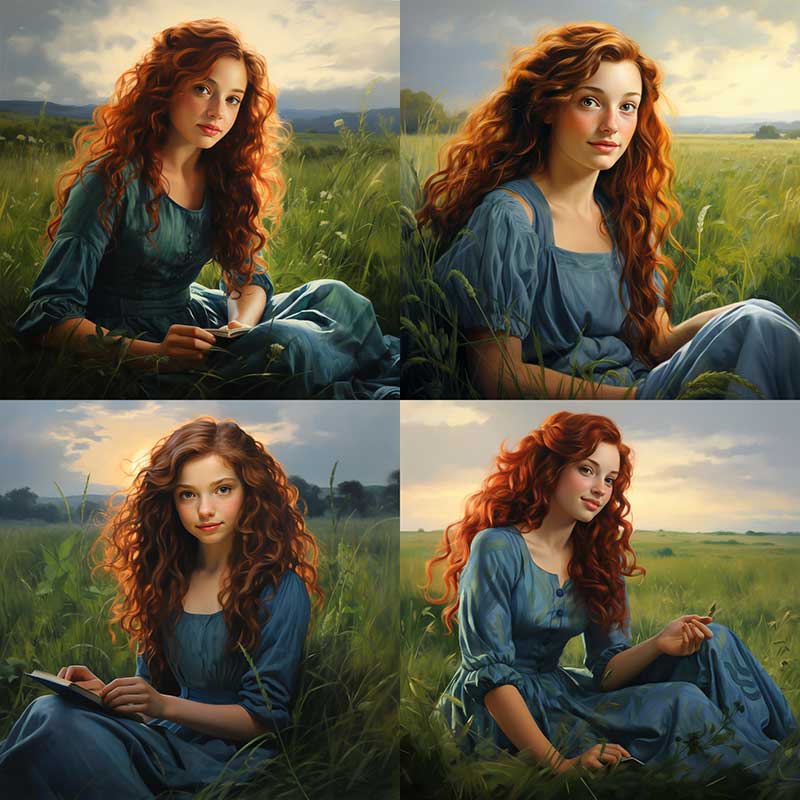
Keep your prompt under 50 words. The more details you include, the better Midjourney will be able to generate what you have in mind.
Review and Iterate on the Results
Look through the 4 ai art creation images Midjourney generates. If you like one, press the corresponding U button from the selection of U1, U2, U3, U4 buttons to generate a high resolution version to download. Each U button relates to an image in the grid of 4. Top left is U1, top right is U2 etc
If you want to try again and improve the results, you can re-run your prompt with small tweaks - change the description slightly, add or remove details, or try using different styles or modifiers.
Experiment with 10-20 different prompts to get a feel for how Midjourney interprets your text descriptions. With practice, you'll learn how to craft prompts that produce the images you want.
Craft Effective Prompts
The key to generating stunning images with Midjourney is crafting effective text prompts. Here are some tips and examples for writing good prompts that will result in amazing AI art:
Use Vivid Descriptions
Paint a picture with your words using vivid language. Describe the colors, lighting, mood, and finer details you want to see in the image. For example:
A solemn knight in black armor standing on a cliff overlooking a large fantasy city at sunset, dramatic sunset lighting, highly detailed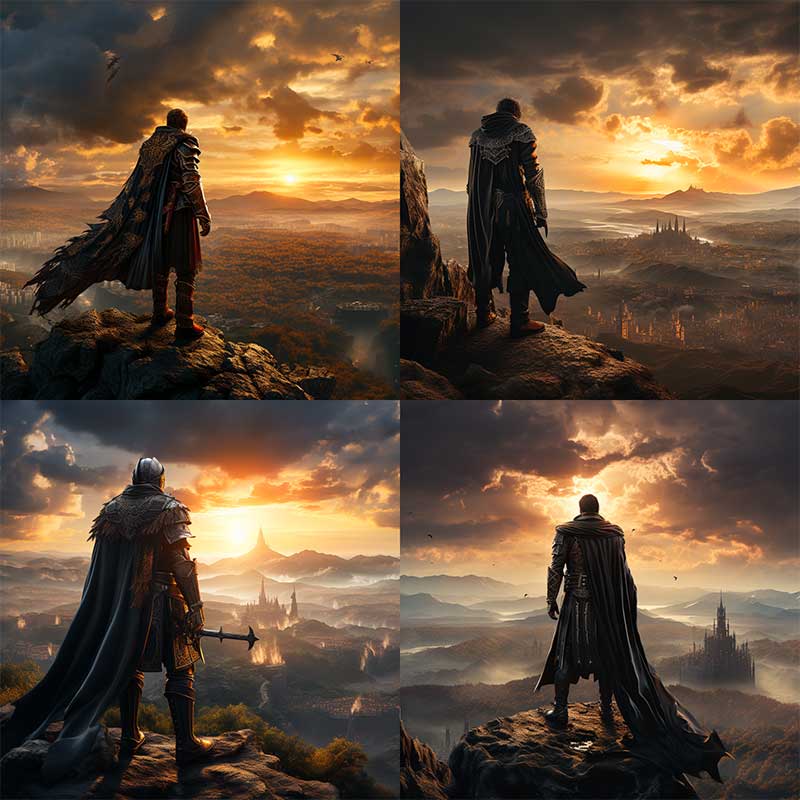
Specify a Style
Tell Midjourney what overall style you're going for - photorealistic, abstract, cartoon, CGI, etc. For example:
An astronaut floating in space, photorealistic, National Geographic style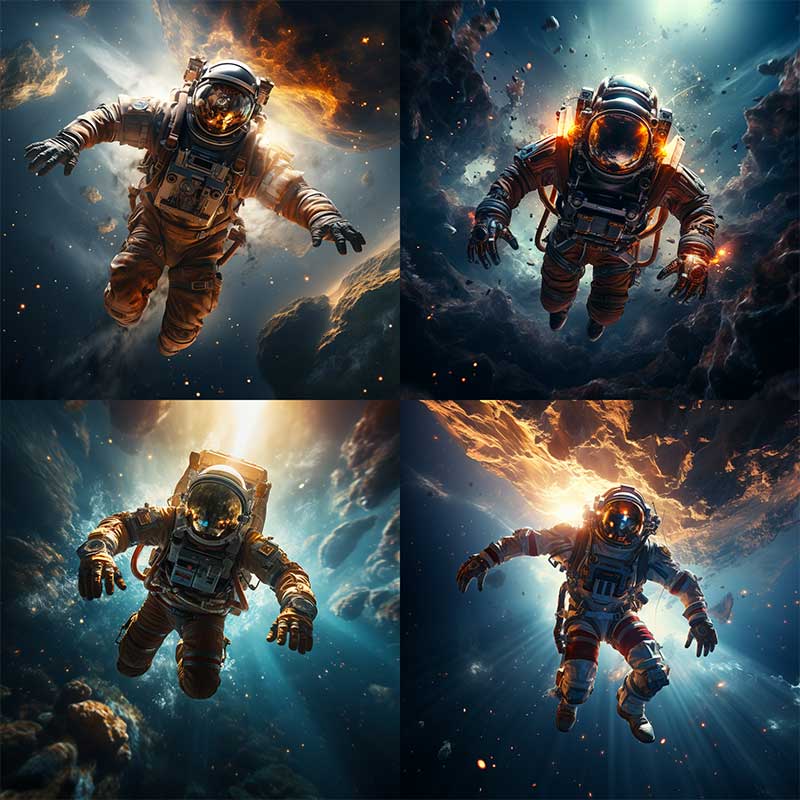
Mention Subjects and Themes
Clearly state the subjects, themes, and elements you want to see in the image. The more details the better. For example:
A fairy princess in a forest at night, surrounded by small glowing fairies, magical, whimsical, intricate details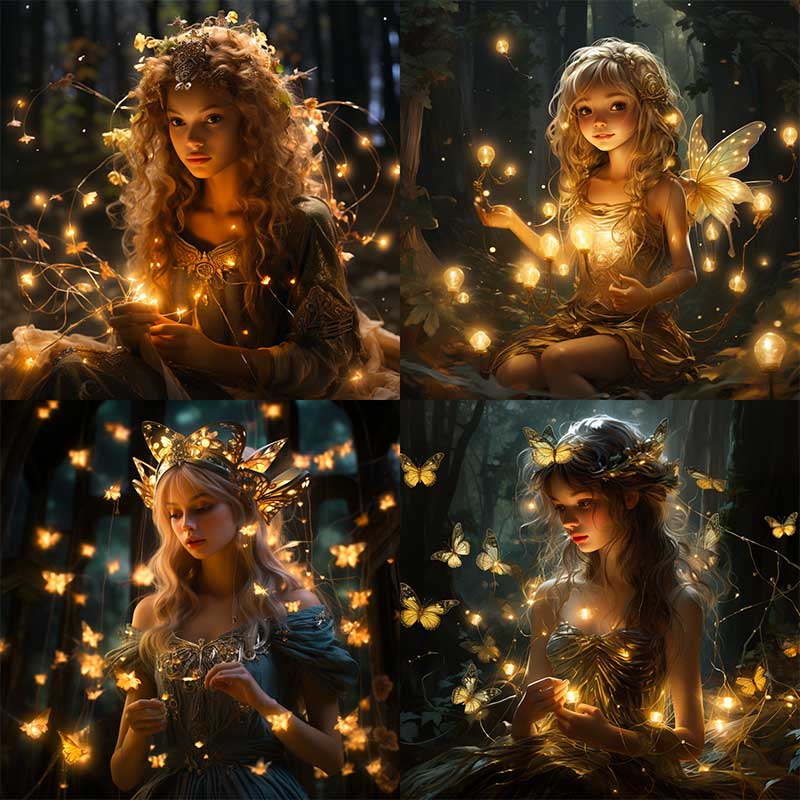
Give Examples
Provide examples of specific styles, artists, movies, or other visuals for inspiration. For example:
A landscape in the style of Bob Ross paintings, with happy trees, mountains, and a small cabin by a lake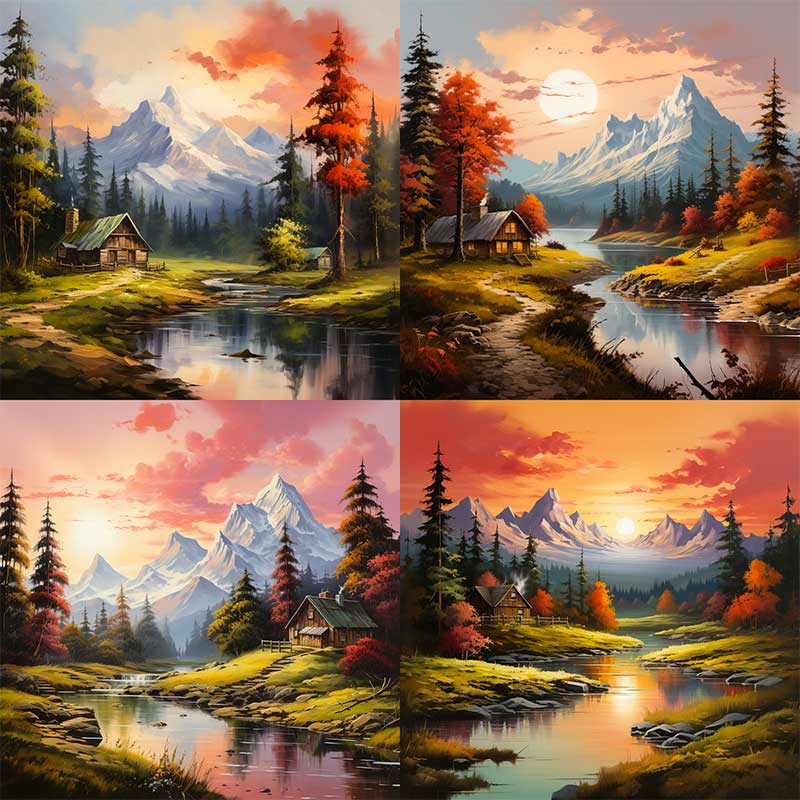
Emotive Language
Use emotive words to convey the feeling or mood of the image. For example:
A cute baby sloth hanging from a tree, adorable, innocent, full of wonder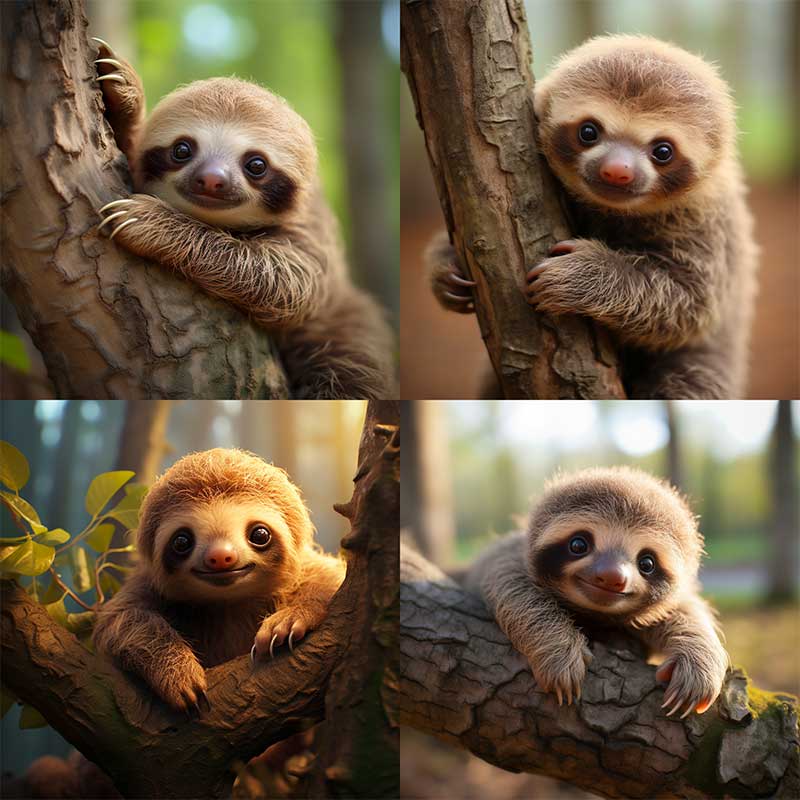
Following these tips and looking at examples will help you write effective prompts that clearly describe your vision to Midjourney's AI. With practice, you'll be able to generate stunning custom images tailored to your creative needs.
Use Styles and Modifiers
One of the most powerful features of Midjourney is the ability to apply different art styles and modifiers to your generated images. This allows you to have fine-grained control over the aesthetic of the final image.
Applying Art Styles to your AI Art Creation
To generate an image in a specific art style, simply include the style name after your prompt. For example:
A cute puppy in a field photorealistic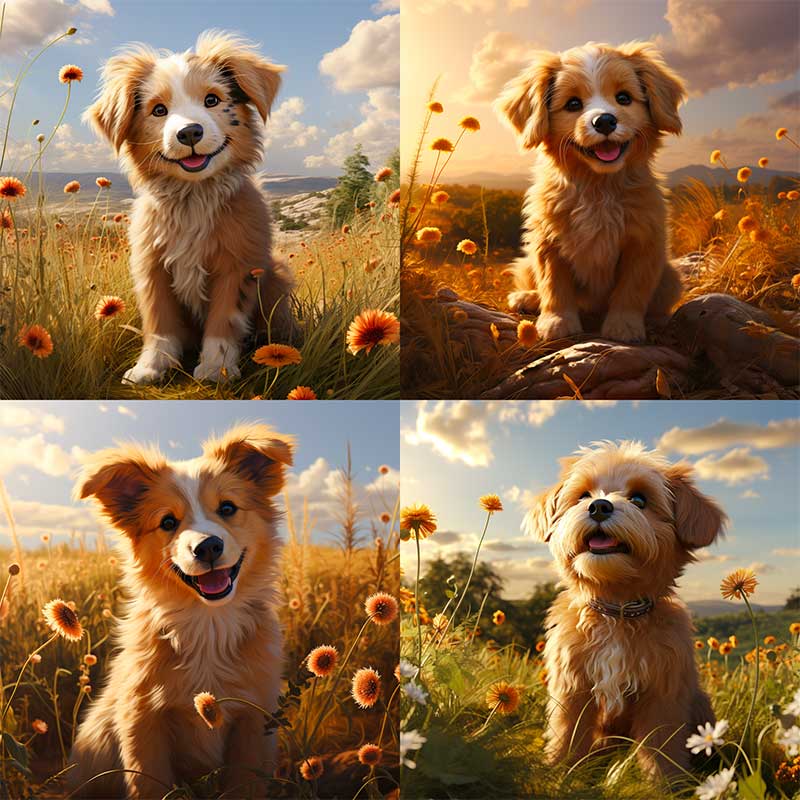
This will instruct Midjourney to render the image of a puppy photorealistically. Some common art styles you can use are:
- Photorealistic - Makes the image look real as if captured with a camera
- Pixel art - Renders the image in a pixelated, 8-bit video game style
- Oil painting - Simulates an oil painting with visible brush strokes
- Watercolor - Generates a watercolor painting style with pigment bleeding
- Vector art - Creates clean line art similar to a vector graphic
- Sketch - Renders the image as a pencil or charcoal sketch Experiment with different art styles to find one that fits your desired aesthetic.
Using Modifiers
In addition to styles, you can also append different modifiers after your prompt to alter the composition, lighting, and mood of the generated image. Some examples:
- Cinematic - Dramatic scene lighting as if from a movie
- Retro futuristic - Futuristic setting with retro design elements
- Low poly - Geometric style with low polygon surfaces
- Cyberpunk - Futuristic dystopian vibe with neon lighting
- Steampunk - Retro-futurism inspired by 19th century steam power Chain multiple modifiers together to create unique effects, like "cinematic low poly". Get creative with modifiers to add interest and variety to your Midjourney artworks.
By leveraging styles and modifiers, you can guide the AI to match your artistic vision more closely. Don't be afraid to experiment until you achieve the perfect aesthetic.
Generate High-Res Images
Midjourney can upscale a generated image to roughly double its size. Images start at about 1024 x 1024 pixels, and the upscalers take that to about 2048 x 2048 — enough for web, social, and modest print use.
To upscale, generate your grid of four images first, then pick one. In the web app, hover the image and choose Upscale (Subtle) or Upscale (Creative). In Discord, press the U button for the image you want, then choose from the same two options.
/imagine dog walking in a parkSubtle adds resolution and leaves the image as it is. Creative adds resolution and invents extra detail with it, which is good for texture and bad for faces and text. The old --upbeta flag no longer works — it was retired along with the V4 model, and stacking it never did produce a 4K image.
The upscale takes a few seconds. Once it's finished, right click the image and choose "Save As", or use the download button in the web app, to save the full-size file.
Paid subscribers own the images they generate and can use them commercially — print them, edit them, sell them. Two conditions are worth knowing before you build anything on that. If you, or the company you work for, turned over more than US$1,000,000 in the last year, Midjourney's terms require a Pro or Mega plan for you to own your assets. And anything generated on a free trial is licensed for non-commercial use only. Check the current terms before you use an image commercially — they have changed more than once.
Upscaling is quick — seconds, not the 10-20 minutes the earliest versions took. If you need more than about 2,000 pixels for large format printing, run Midjourney's upscale first and then a dedicated image upscaler on top of it.
Run both upscalers on the same image while you're learning. The difference between Subtle and Creative is much easier to understand when you can see the two side by side.
Build Off Previous Images
One powerful feature of Midjourney is the ability to continue and build off of previous images through chaining prompts together. This allows you to create a sequence or story with your AI art.
To chain prompts, simply right click the upscaled image of your choice, then copy the URL using the option at the bottom of the menu. Then using a new /imagine command, paste the URL and then add your new prompt
wizard walking through a mysterious cave carrying a lanternMidjourney will remember the context of the wizard and forest, and generate an image of him in a new scene - the cave.
You can continue chaining prompts like this to have the AI expand and build on the narrative or world. Describe how the scenes and characters progress in each new prompt.
Another way to build off previous images is to use them for visual inspiration. Study aspects you like about a generated image, and incorporate those elements into new prompts and creations.
For example, if you really like the mystical ambience of a fantasy landscape, describe that mood and style in subsequent prompts to achieve similar magical results. Or pull out specific colors, lighting, or character poses you want to replicate.
Chaining prompts and borrowing visual styles keeps your images feeling connected and cohesive. Experiment with prompting off of your Midjourney creations to develop captivating sequences that unlock your imagination.
Tips and Tricks for Mastering Midjourney
To get the most out of Midjourney and generate the highest quality AI images, keep these tips and tricks in mind:
Describe Both Style and Subject
Make sure to describe not just the subject matter you want generated, but also the artistic style. For example, "A cute puppy in an impressionist painting style". This helps Midjourney understand the full context.
Use Comparisons and Examples
Compare your desired image to existing art styles, movements or pieces to give Midjourney more context. For example, "Surrealist landscape painting by Salvador Dali". You can also provide examples by including links or image uploads.
Iterate and Improve
Don't be afraid to re-run prompts and make slight adjustments until you get the desired result. Change the wording, add more details, or remove parts that don't seem to be working. Iterating is key to getting great outputs.
Vary Prompt Length
Try both long, highly detailed prompts and shorter, more abstract prompts. There's no universal best prompt length - experiment to see what works for different concepts. Generally, 1-2 sentences is a good starting point.
Use Weights and Parameters
Adjust the image parameters to get more control. --ar sets the aspect ratio (--ar 16:9 for widescreen), --stylize controls how much artistic licence Midjourney takes, and --chaos controls how different the four results are from each other. The old --testp parameter no longer exists. Midjourney's own documentation carries the current list.
Fix Unwanted Elements
If certain elements appear that you want removed, add "--no [element]" to your prompt. For example, "Astronaut on Mars --no American flag". This tells Midjourney not to include those items.
Be Specific But Flexible
Have a clear vision for what you want, but don't be overly rigid. Leave room for Midjourney's creativity to shine through and surprise you. The end result may be better than your original idea.
Rephrase For Better Results
If an output doesn't match the vision you described, try rephrasing the prompt with different vocabulary, literary techniques like metaphors or analogies, or a different sentence structure. A rephrased prompt can yield dramatically different results.
Seek Feedback and Inspiration
The Midjourney Discord community is full of helpful people. Ask for feedback on your prompts and get new ideas. Seeing examples of prompts and results from others is invaluable for improving your own work.
Tech Crunch - Understanding How Midjourney's AI Works
Midjourney uses a diffusion model to create images from text prompts. Here's a brief overview of how it works:
The heart of Midjourney is a deep neural network trained on millions of images scraped from the internet. This neural network contains different layers that analyze the text prompt, extract keywords, and map the words to visual concepts.
The neural network has learned to generate new images by examining lots of examples during the training process. It can now take a text description, understand the semantics and meaning behind the words, and translate that into a new image that matches the description.
The key technique is called diffusion. The model is trained by taking real images and adding noise to them, step by step, until they are pure static — then learning to run that process backwards.
To make your image it starts from random noise and removes a little of it at a time, steering at every step towards something that matches your text prompt. That is why you can sometimes watch an image resolve out of a blur.
Over many training iterations the model learns what to strip away and what to keep, which is why it can produce photorealistic and stylised images from just a few words. One clarification worth making, because it is repeated everywhere: Midjourney is not a GAN. Generative adversarial networks were the previous generation of image models, and they work in a completely different way.
While the technical details are complex, the high-level idea is that Midjourney leverages AI and neural networks to understand text and generate corresponding images. The more examples it sees during training, the better it becomes at this task. This allows Midjourney to unlock our creativity through natural language.